eFax Online Fax Service Review
Last Update: November 10th, 2021
eFax® review highlights
- Lots of features
- Send or receive a fax from email, your computer, or smartphone
- Signature stamps
- Great international fax number availability
Basic functionality:
Extra features:
Starting from: US$12.95/month (2 month free with an annual plan) to send 150 and receive 150 pages per month.


On this page
- eFax: Top 3 pros
- eFax: Top 3 cons
- What type of fax numbers are available?
- System requirements
- File format compatibility
- Is eFax easy to use?
- How eFax works: How to send a fax
- How eFax works: How to receive a fax
- How eFax works: Notable extra features
- How is eFax for:
- Customer service
- Pricing
- Conclusion & Recommendation
eFax® online fax service: top 3 pros
Signature stamps
Need to turn around a fax with a quick signature? eFax®’s signature stamps will let you paste a quick signature onto a fax and then fax it back.
Use the smartphone app or eFax® Messenger to apply the signature stamp to a document and then fax it.
Great international fax number availability
eFax® has truly global service. Fax numbers are available in 48 different countries including the United States, Canada, the United Kingdom, Australia, India, Japan, South Korea, France, Germany, Ireland, New Zealand, Singapore, the Philippines, Malaysia, Mexico, and more.
Lots of compatible file formats
eFax®’s file format support is excellent. With over 170 compatible file formats, eFax® can save the time it takes to convert a document to a PDF. Linux users will enjoy the Open Document (often used with Open Office) formats. File formats are as far reaching as to include CAD, Lotus 123, Quattro Pro, Postscript files, and more.
eFax® fax service: top 3 cons
Software looks and feels older
eFax® Messenger and the web pages feel like they’re from the Windows XP era. Maybe this is a good thing as sometimes the philosophy of “if it’s not broken, don’t fix it” can lead to stable software. The interface does feel out of date.
The smartphone apps feel fresh and new, however.
We can’t get the Mac desktop software to work
When we try to install the Mac version of eFax®’s desktop software, we get an error message “You can’t open the application because PowerPC applications are no longer supported.”
You might not be able to port an assigned fax number away from the service
From our understanding of section 20 (Ownership) of eFax®’s customer agreement, all assigned fax numbers are owned by eFax® / j2 Global Inc.. There is no option to port the number away from the service. An attempt to port away a fax number results in the return of the fax number and about a US$500 penalty.
According to the same section, it may be possible to port a number out if the number was originally ported in. To port a number in, the best option appears to be to sign up for the service, ensure you like it, then start a support ticket to port a fax number in (it can be any regular phone number).
What type of fax numbers are available with eFax®?
Local and toll-free fax numbers are available.
eFax® has excellent international service, with fax numbers available in 48 countries.
Users considering a toll-free number should also consider a second “local number” as toll-free numbers are often not available from outside the country.

eFax® has many international numbers including Canada, the U.K., and Australia, as well as:
Americas:
Europe & Africa:
Asia & Pacific:
System requirements
An active internet connection is required to use eFax®’s online fax service for all methods of faxing. There is no traditional phone line required to fax with eFax®.
eFax® fax service can run from the web via any major browser.
eFax® Messenger (the desktop software) requires Windows to run. eFax® says that it is also compatible with Mac, however, when we try to install it, we get an error message “You can’t open the application because PowerPC applications are no longer supported.”
Smartphone apps are available for iOS (iPhone, iPad, and iPod Touch) and Android.
Email to fax is compatible with any email client or service, including Outlook, Hotmail, Gmail, and Yahoo! Mail.
File format compatibility
eFax® is compatible with 52 different file formats (when counting the number of compatible file extensions)
Popular file formats PDF, TXT, RTF, and Microsoft Word and Excel are all compatible with eFax®.
File formats from Mac’s iWork suite (Pages, Numbers, and Keynote) are not compatible (we’re not aware of anything on the market that is compatible with iWork). These file formats can be saved as PDF or RTF format to fax.
Open Office file formats (ODT, ODS, ODP) are compatible with eFax®.
Is eFax®’s service easy to use?
We find the email and smartphone versions of eFax® very simple to use.
The web version feels older but works well.
The eFax® Messenger software (where some of the advanced features such as signature stamps are) feels like it has a bigger learning curve.The program feels like it is from the Windows XP era and the features don’t feel intuitive. However, the help manual is very complete and once it is figured out, the functions work well.
Software that feels older isn’t always a bad thing – some software experts say that an approach of “if it’s not broken don’t fix it” is a good way to create stable software.
How does eFax® work: how to send a fax
eFax® can send faxes through an email, web browser, smartphone app, or eFax® Messenger desktop software.
Step 1: start a new fax
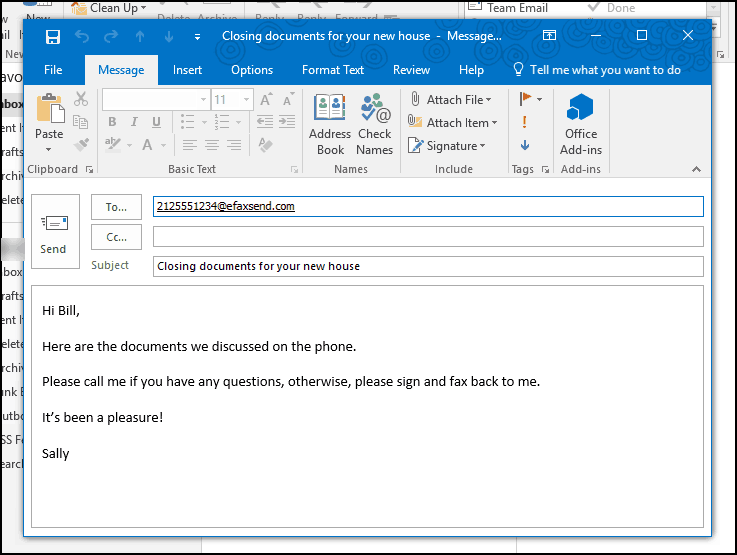
If sending a fax with email, open a new email message. Enter the fax number as an email address. If the fax number you want to send to is 212-555-1234, put the “to” address of the email to [email protected]. The subject line and body of the email will transfer over to the subject line and body of the fax’s cover page.
If using the web application click “send faxes,” if using eFax® Messenger click on “file” then “create new fax,” and if using the smartphone app, click on the plus in the bottom right. Add the fax number to the “to” field. There are also fields for the name and company of the person you’re sending the fax to, as well as the subject line and body of the cover page.
The cover page will be the default cover page selected in eFax messenger.
Step 2 – Attach documents
If faxing with email, attach documents to the email the same way you would a regular email.
If faxing with the web application, select the “choose files” button in the attachments area, and select the files you want to include in the fax.
If faxing with eFax® Messenger, click on the paperclip to attach the files.
If faxing with eFax®’s smartphone app, you’ll need to select a document from another app on the device and share it with eFax®. Then you will be able to attach it to the fax. There is no direct integration with iCloud, Dropbox, or any file sharing service.
Step 5 – Send the fax & wait for confirmation
Send the fax by pressing the send button (with email just send the email). This action will upload the information to eFax’s servers who then dial the fax number.
If the fax sends successfully, you will receive an email with a copy of the confirmation page. It will have details of the transmission time, date, and specifics of the fax.
If the fax is unable to send, you will receive an email with a notice of the attempt and the problem (busy line, fax machine did not answer, call interrupted, etc.).

How does eFax® work: how to receive a fax
You receive a fax to your email as an attachment in PDF (or TIFF) format.
eFax® also allows for reception in the EFX file format (an encoded format), unique to eFax®’s system. EFX files are viewable with eFax® Messenger.

The web interface and smartphone app can be used to access stored faxes.
As the fax is a PDF file, it can be printed, saved, edited, and then forwarded as an email attachment or fax back through eFax’s fax system.
How does eFax® work: Notable extra features
We consider RingCentral to be “feature rich.” Here is a sample of some (but not all) of the features that eFax® offers with its faxing platform.
HIPAA support
HIPAA support is useful to legal and medical offices or anyone who needs to qualify for an information privacy standard. With HIPAA enabled, incoming faxes to not arrive as an email attachment. Rather, the email arrives with a link to the document stored on eFax®’s servers and the user can then to log in to access it.
Cover sheet customization
eFax® lets you edit the cover pages you have in the system. eFax® comes with quite a few default cover pages, and they can all be edited and adjusted (or new pages created from scratch) to match any look that your business wants to provide.
eFax® Messenger is used to edit cover pages. They are then stored in the eFax® system for use when sending a fax with other methods such as a smartphone or email.
Signature stamp (eFax® Messenger and Smartphone app only)
A signature stamp lets you add your signature to a document. It is very useful for putting a quick signature on a document and faxing it back to the person that sent it.
eFax® Messenger or the smartphone app can add a signature to a document. It’s a useful feature to save the time of printing a document, signing it, then scanning it again.
Use Outlook’s address book
eFax® Messenger can use the information in Outlook’s address book. It’s a good way to keep all information in one place without having to update multiple address books.
Reduce transmission speed & quality
eFax® has the option to reduce the transmission speed and quality of a document. This is a useful feature for a fax transmission that is having trouble connecting, as a reduction in speed and quality can help some transmissions go through properly.
How is eFax® for…
...Windows PC
Basic functionality
Extra features
...MacOS
Basic functionality
Extra features
...Linux
Basic functionality
Extra features
...Smartphone users (iPhone and Android)
Basic functionality
Extra features
Customer service
Customer service and technical support availability:
eFax®’s customer service and technical support is available 24 hours a day, 7 days a week.
Online resources:
eFax® includes a FAQ and help manual with their product.
Better Business Bureau
The BBB has a listing eFax® with a rating of “A” and a total of 2 complaints (both for billing). They also have a listing for J2 Cloud Services, LLC with a rating of “F” with 553 complaints. Nether are accredited members of the BBB.
j2 Cloud Services, LLC appears to be very responsive. Of the 553 complaints, 153 (28%) were resolved to the complainant’s satisfaction, in 399 (72%) the consumer did not accept the response OR the BBB did not hear back from them, and 1 complaint (0%) was not responded to. The complaints can be categorized as: 8% advertising/sales, 57% billing/collection, 1% delivery issues, 35% product/service, and 0% guarantee/warranty.
It is likely that the j2 listing is not just for eFax, as j2 Global has many brands, including eFax®, MyFax, MetroFax, PopFax, RapidFax, SFax, eVoice, PC Magazine, Geek.com, IGN, Speedtest by Ookla (Speedtest.net), Ziff Davis, and more.
The J2 Cloud services listing includes alternate names of “j2 Global®, j2 Global®, Inc, j2 Global® Communications, j2 Global® Communications, Inc, and eFax®.” All listings are for the same address that eFax and eFax’s parent company (j2 Global, Inc.) lists its headquarters in Hollywood, California.
“Review” sites:
Between 2014 and June 30, 2017, we have noticed 177 complaints or negative reviews for eFax at the Ripoff Report (27), Consumer Affairs (110), and Pissed Consumer (40).
It is likely that some of these listings are not just for eFax as some services such as Consumer Affairs returns eFax as a result when searching for other j2 Global brands (MyFax, eVoice, etc.).
Common themes we’ve noticed: Billing issues, cancellation, and account renewals.
Issues we’ve rarely seen: Complaints about the operation of the product.
Pricing
The “eFax® Plus” package, which we tested, is US$12.95 per month (annual plans include 2 months free) to send 150 and receive 150 pages (for a total of 300 pages) per month. Extra pages are US$0.10 per page.
Other packages allow for more pages per month in fax volume. All of eFax’s packages include the same features.
Billing is available 20 different currencies including US dollars (US$), Euros (€), Canadian dollars (CDN$), UK pounds (£), and Australian Dollars (AUS$)
eFax® review – conclusion & recommendation
eFax® combines a feature rich fax experience with very good international number availability.
Windows users will find that there are a lot of features that are difficult to find elsewhere – from signature stamps to address book importing to fully customizable cover sheets will find that eFax® offers this and more.
We think that Mac and Linux users should trial the system closely before committing to eFax® as some of the advanced features only work with eFax® Messenger (which we’ve only been able to operate on Windows).
We feel that eFax® should be one of the first considerations for any power user frequent faxer.